
Using the Progress Page
Opening the Progress Page
You get to the Progress Page by clicking the third page icon from the left.
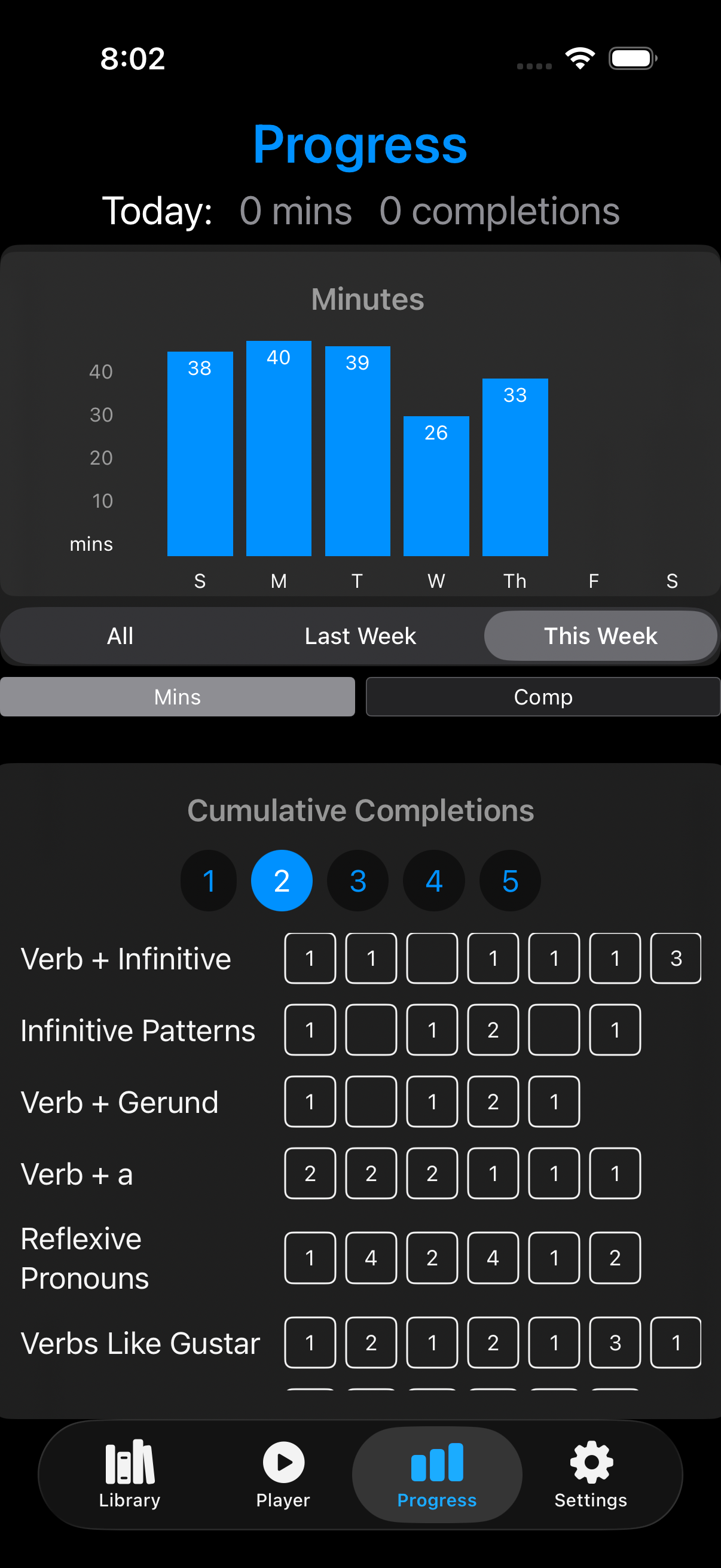
The Progress Page lets you track your exercise completions and the amount of time you spend practicing in the application each day.
Reviewing Time and Completions
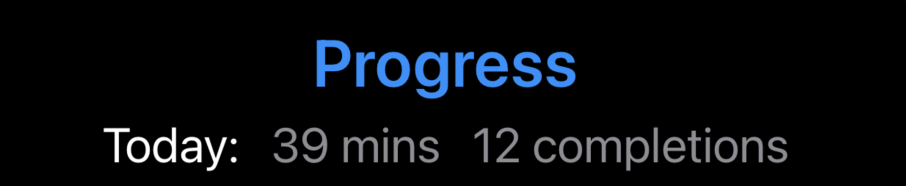
At the top of the Progress Page, you can see your total minutes practiced today and the number of exercises completed.
These totals combine time and completions from both the Library and Player Pages.
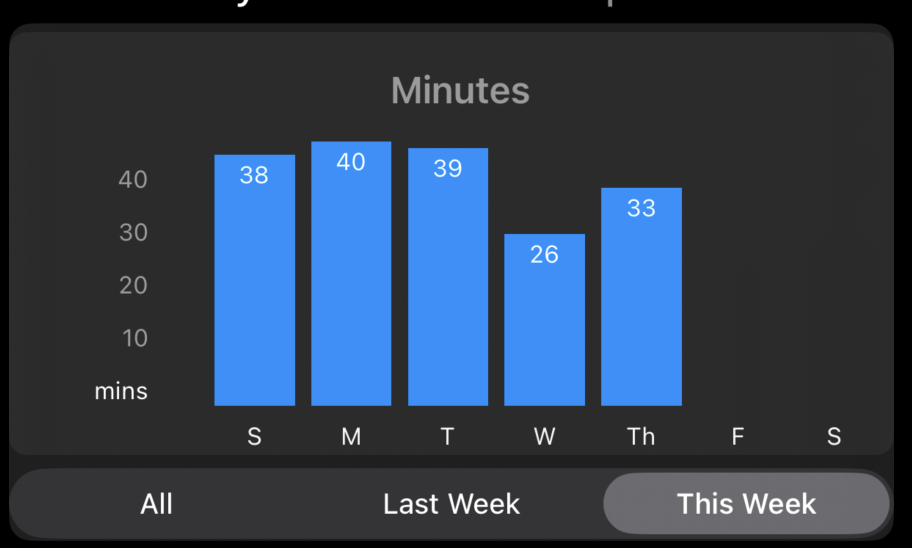
Below the daily totals are bar charts for the current week, the previous week, and your entire history with the application.
The All chart can be scrolled horizontally.
When you select All, the chart also shows your total minutes and completions at the top.
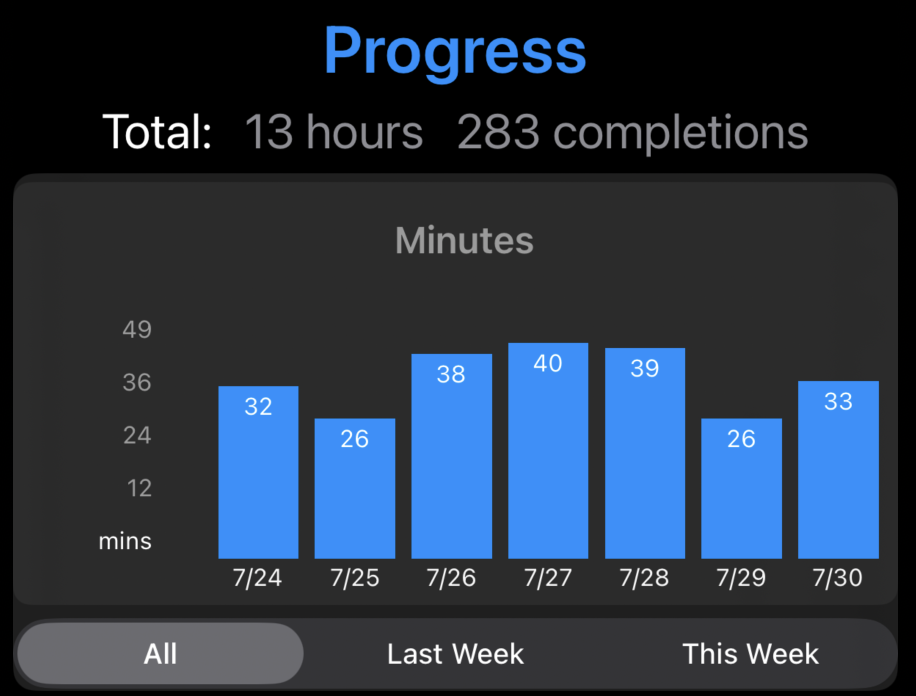
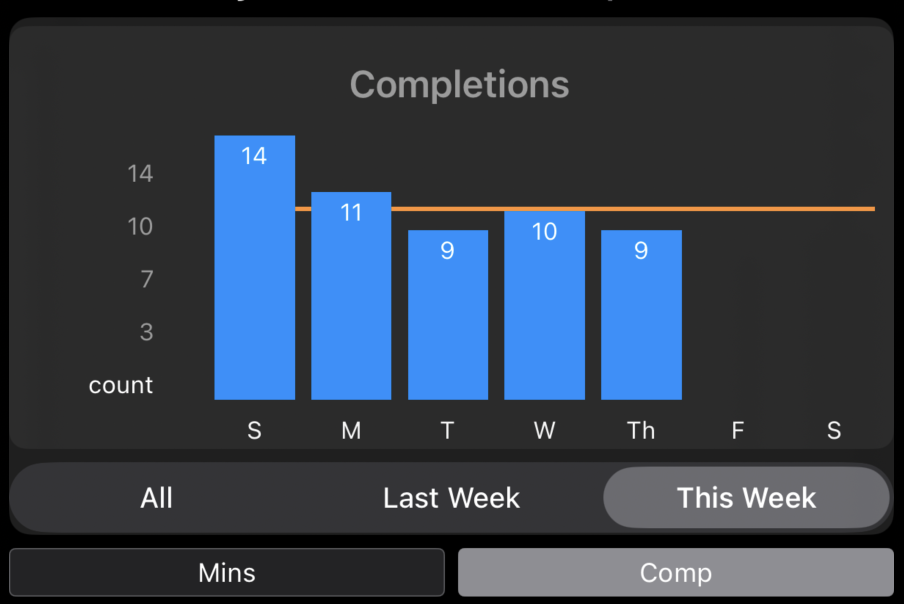
You can toggle the charts to display either minutes or completions.

Displaying Daily Goals
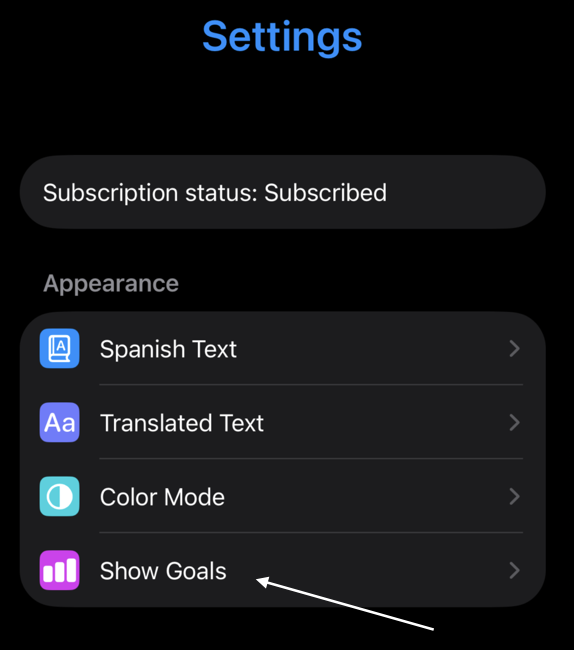
You can add a horizontal line to the charts to quickly see whether you have met your daily goal.
To configure it, go to the Settings Page, turn on Show Goals, and set daily goals for minutes and completions. For more information, see Using the Settings Page.
Tracking Individual Exercises
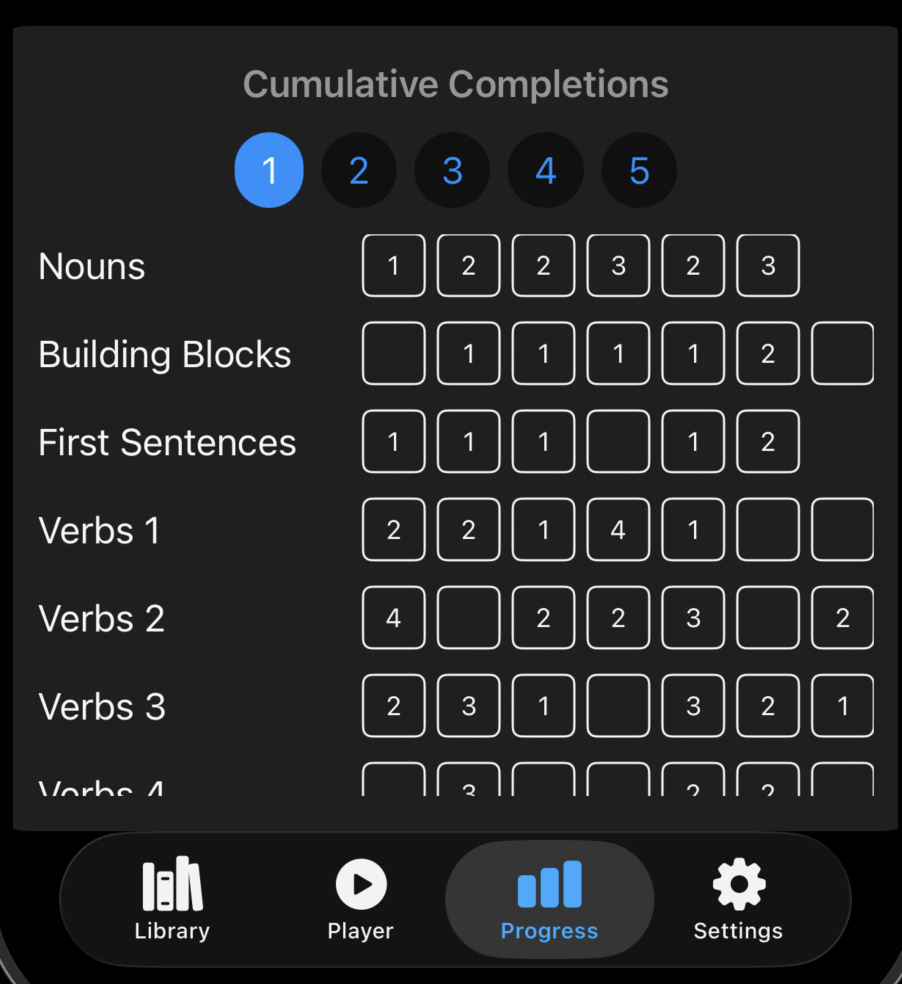
The bottom half of the Progress Page shows the total number of completions for each exercise since you started using the app.
This section also gives you an overview of how Exercise Sets are organized throughout the application. Each box to the right of an Exercise Set represents one exercise.
The boxes are not labeled, but they appear in the same order as the exercises on the Library Page. The number inside each box shows the completion count for that exercise.
Resetting Progress Data
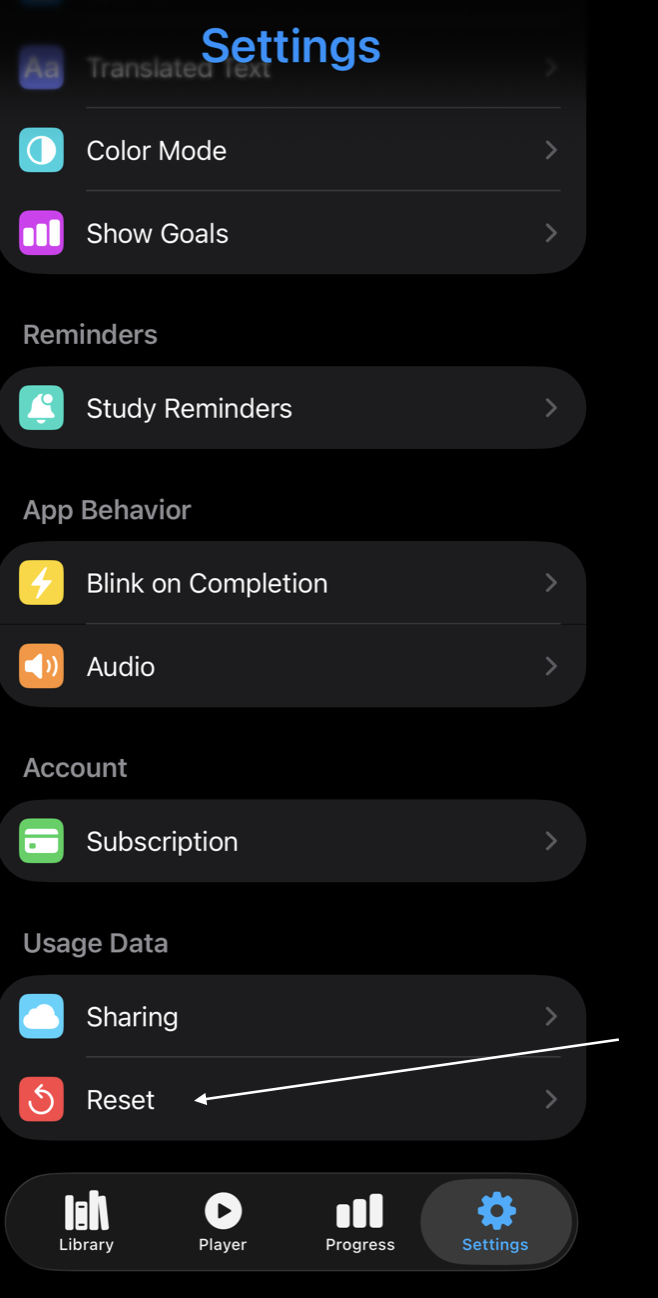
You can completely clear your usage data if you want to reset everything to zero. You will find this option on the Settings Page.
The Progress Page is mainly for reference. It tracks your activity automatically and shows which exercises have the most completions. This can help you plan your next area of study and identify exercises that may need more practice.