Using the Settings Page
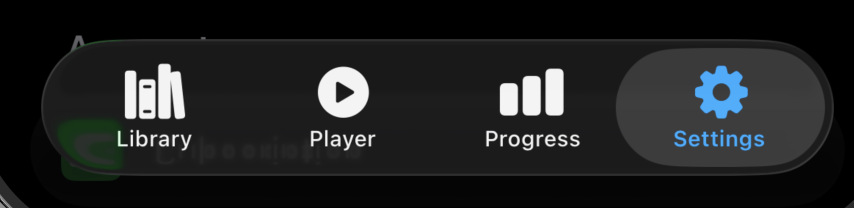
You get to the Settings Page by clicking the right page icon at the bottom.
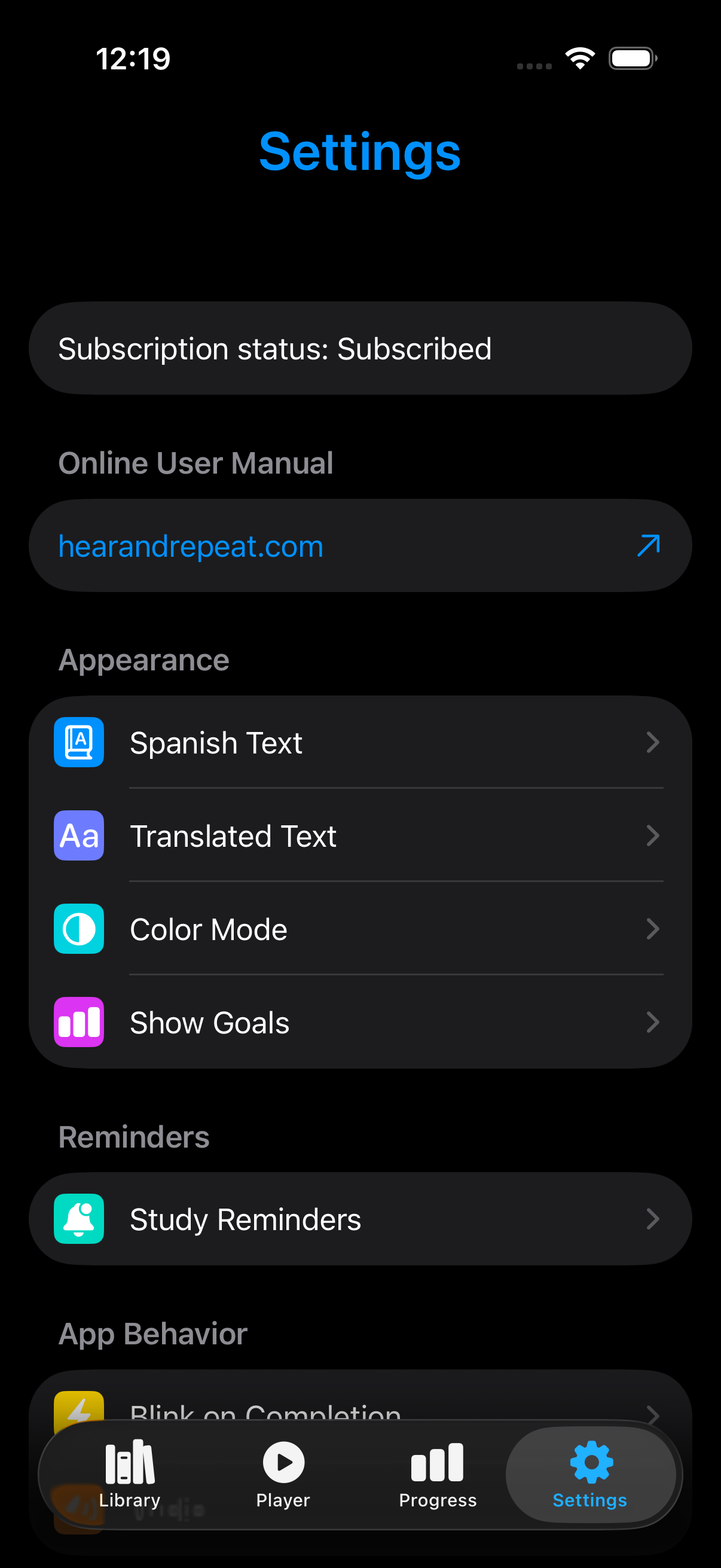
The Settings Page allows you to set various app appearances and behaviors. At the top (under Settings) you can see your current subscription status.
Online User Manual
Tap hearandrepeat.com in Settings to open the online user manual, with instructions for using the app and suggestions for effective study.
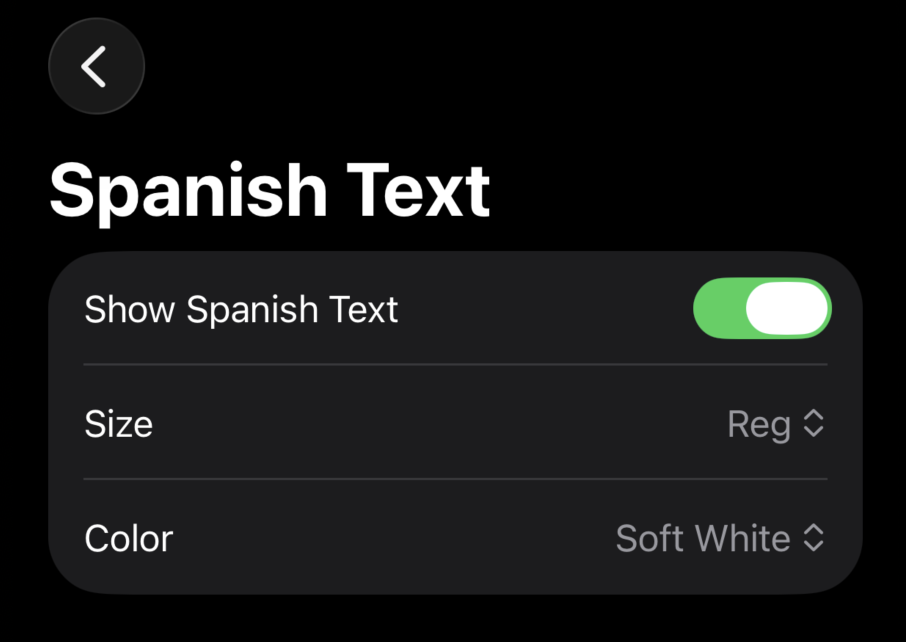
Spanish Text
Translated Text
You can set the size and color of the Spanish and translated text. You can also choose separately whether each type of text is shown at all.
Color Mode
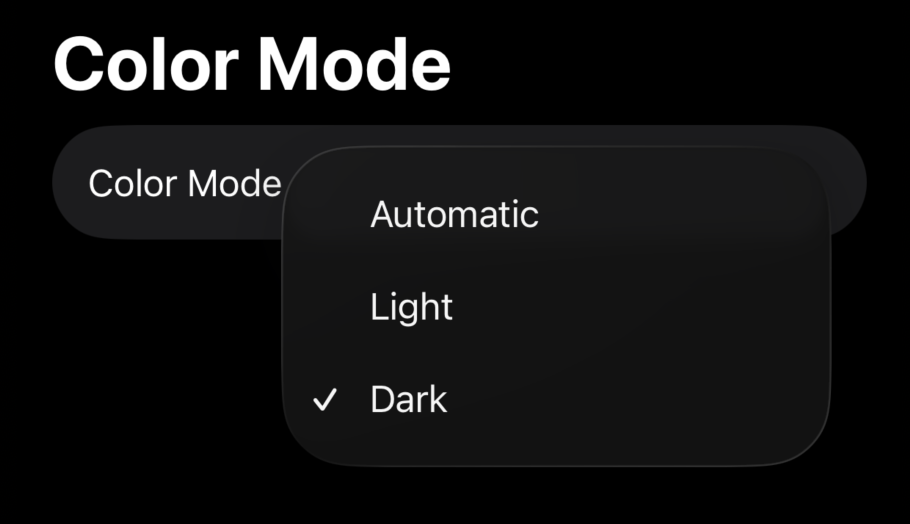
Choose Light for a bright background or Dark for a darker appearance that may be more comfortable in low-light environments.
Choosing Automatic allows the system to control the app’s appearance, including switching between Light and Dark Mode according to the device’s display schedule.
Show Goals
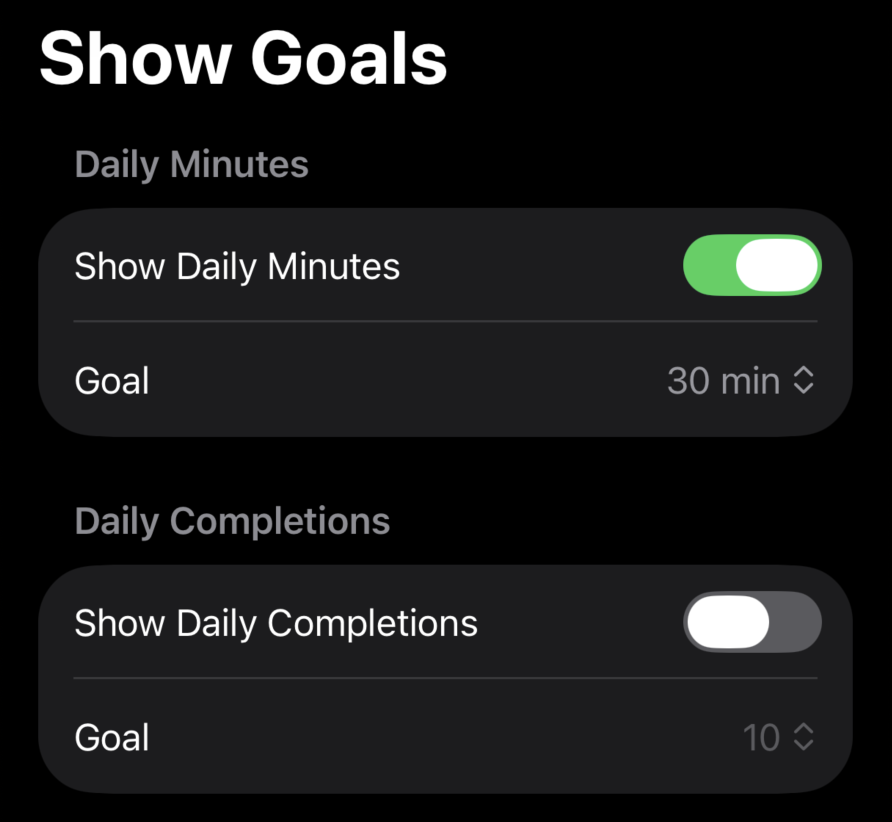
You can add a horizontal goal line to the charts on the Progress Page. This allows you to quickly see whether you have met your daily practice goals.
Study Reminders
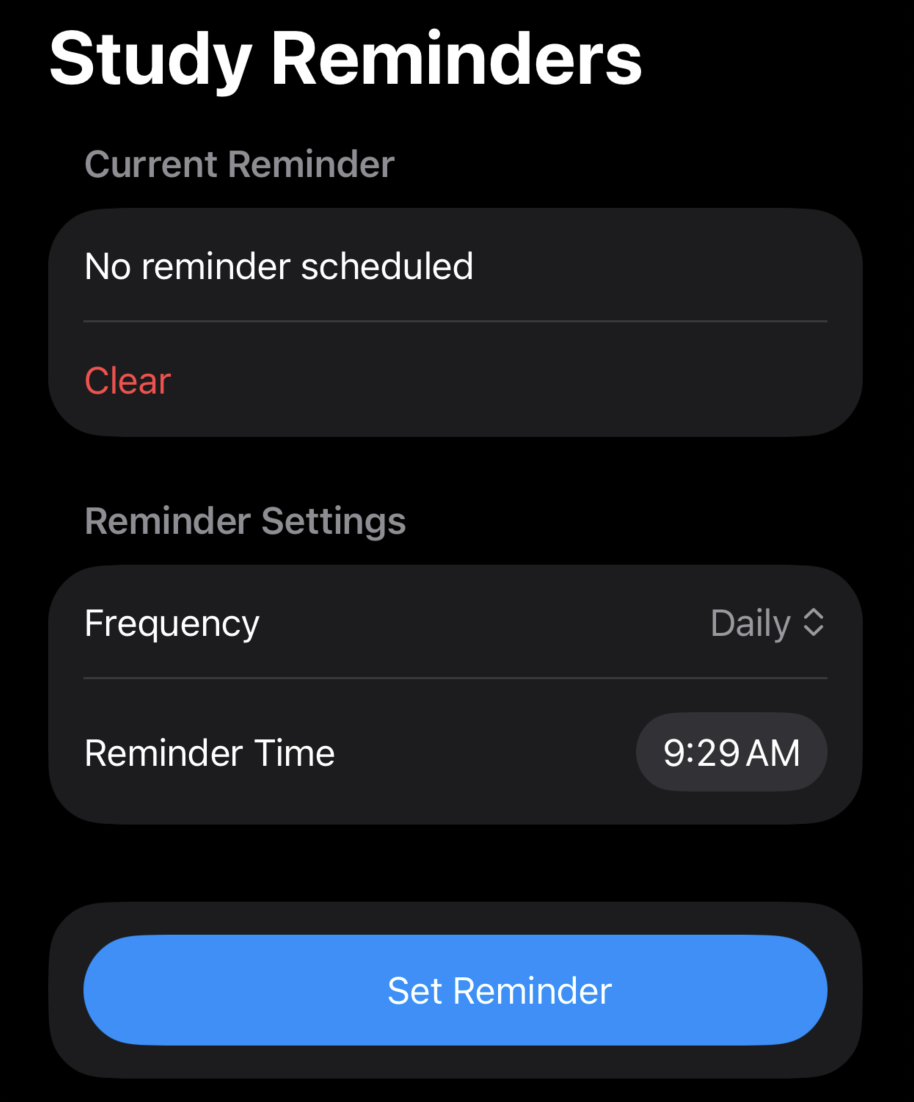
You can set reminders to help you maintain a regular practice schedule. For Frequency, choose Daily or Days of Week, such as Monday, Wednesday, and Friday.
Reminders appear at the selected Reminder Time. To remove your reminders, select Clear.
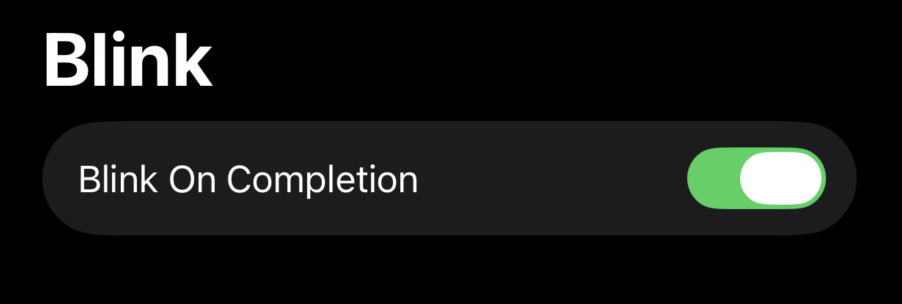
Blink on Completion
When you complete an exercise in either the Library or Player, the last phrase blinks three times to let you know that a completion has been recorded. This setting allows you to turn that behavior on or off.
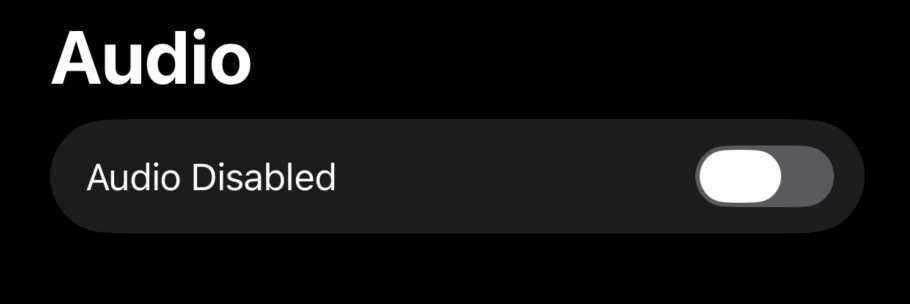
Audio
There may be times when you want to read the Spanish and translated text without hearing the audio. This setting allows you to turn the sound off.
Remember to turn Audio back on when you want to resume listening practice. Otherwise, it may appear that something is wrong with the sound.
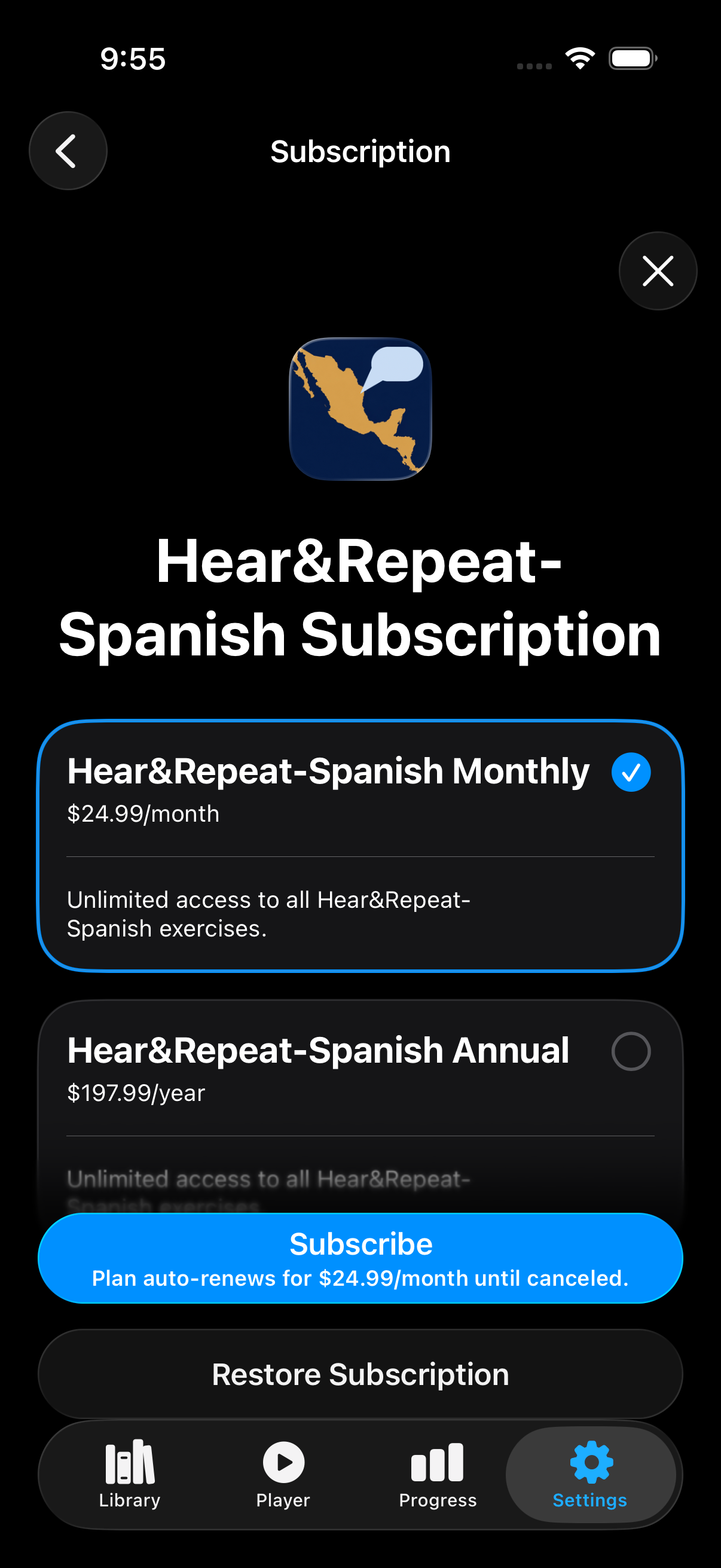
Subscription
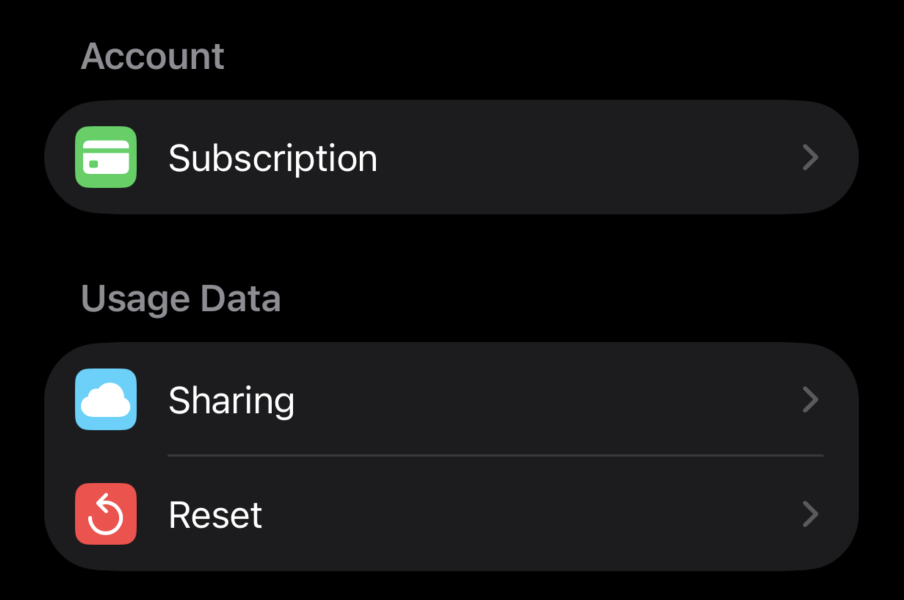
This takes you to the Apple subscription page, where you can sign up for or restore a monthly or yearly subscription.
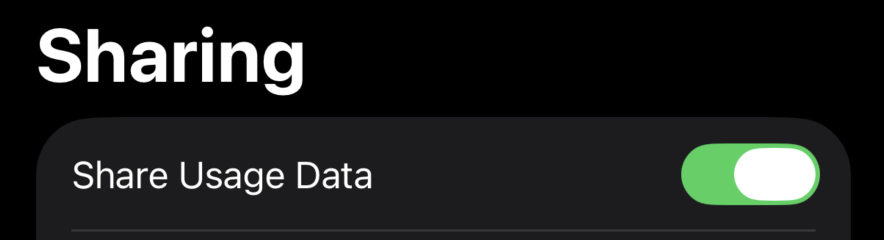
Sharing
This setting determines whether the app sends usage data to our servers so we can study general user behavior patterns. Use the toggle to turn sharing on or off.
Reset
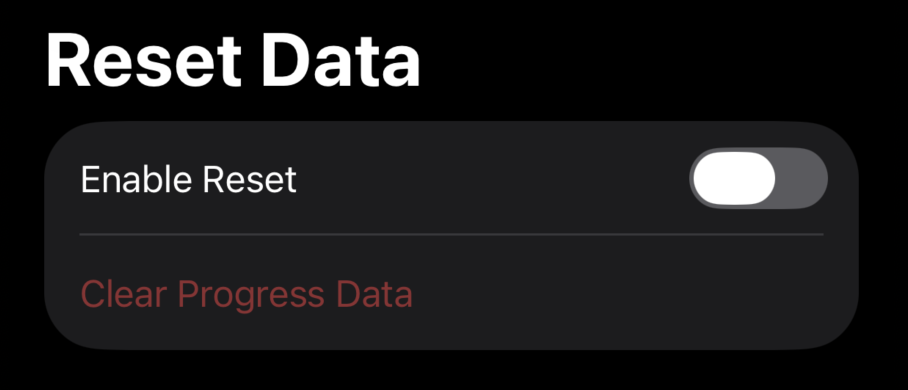
This control allows you to completely reset all usage data. Resetting permanently deletes the current progress data, leaving the charts empty and all exercise completion counts blank. New data will then begin accumulating again from zero.
To reset your data, first unlock the feature by turning on the Enable Reset toggle. Then select Clear Progress Data.