
Using the Player Page
Opening the Player Page
You get to the Player Page by clicking the second page icon in the bottom navigation bar.
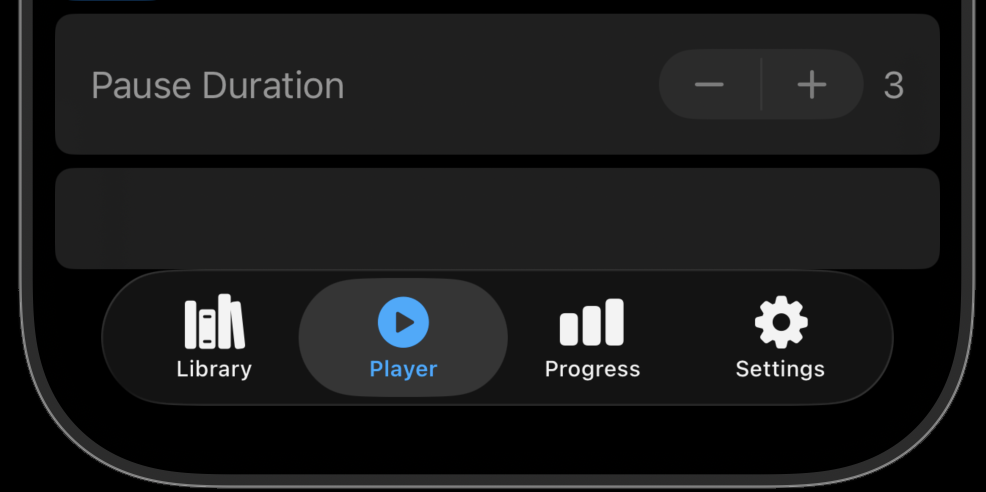
If no exercises have been added to the playlist, the Player Page is disabled.
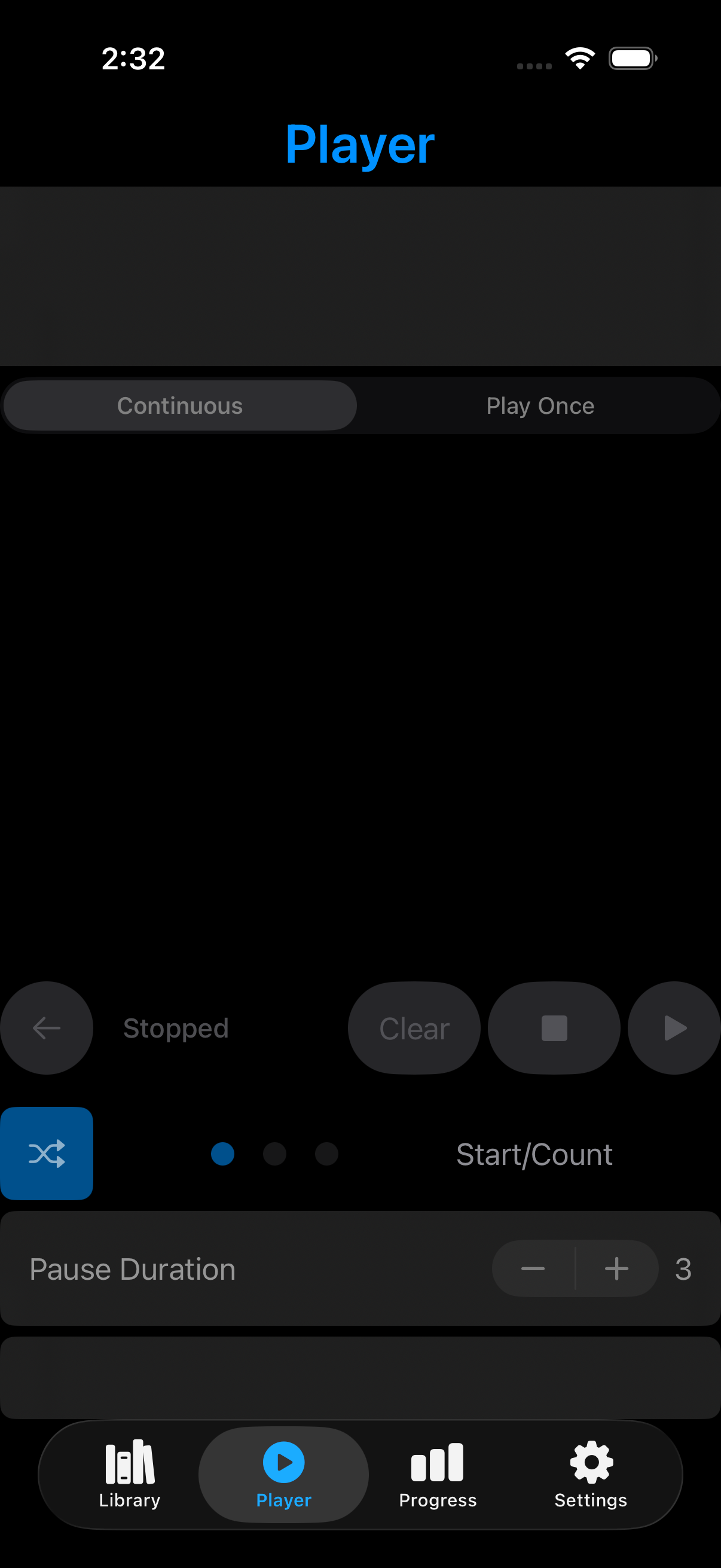
To start using the Player Page, first go to the Library Page and add an exercise to the playlist. Slide the exercise to the left, then select the blue + button.

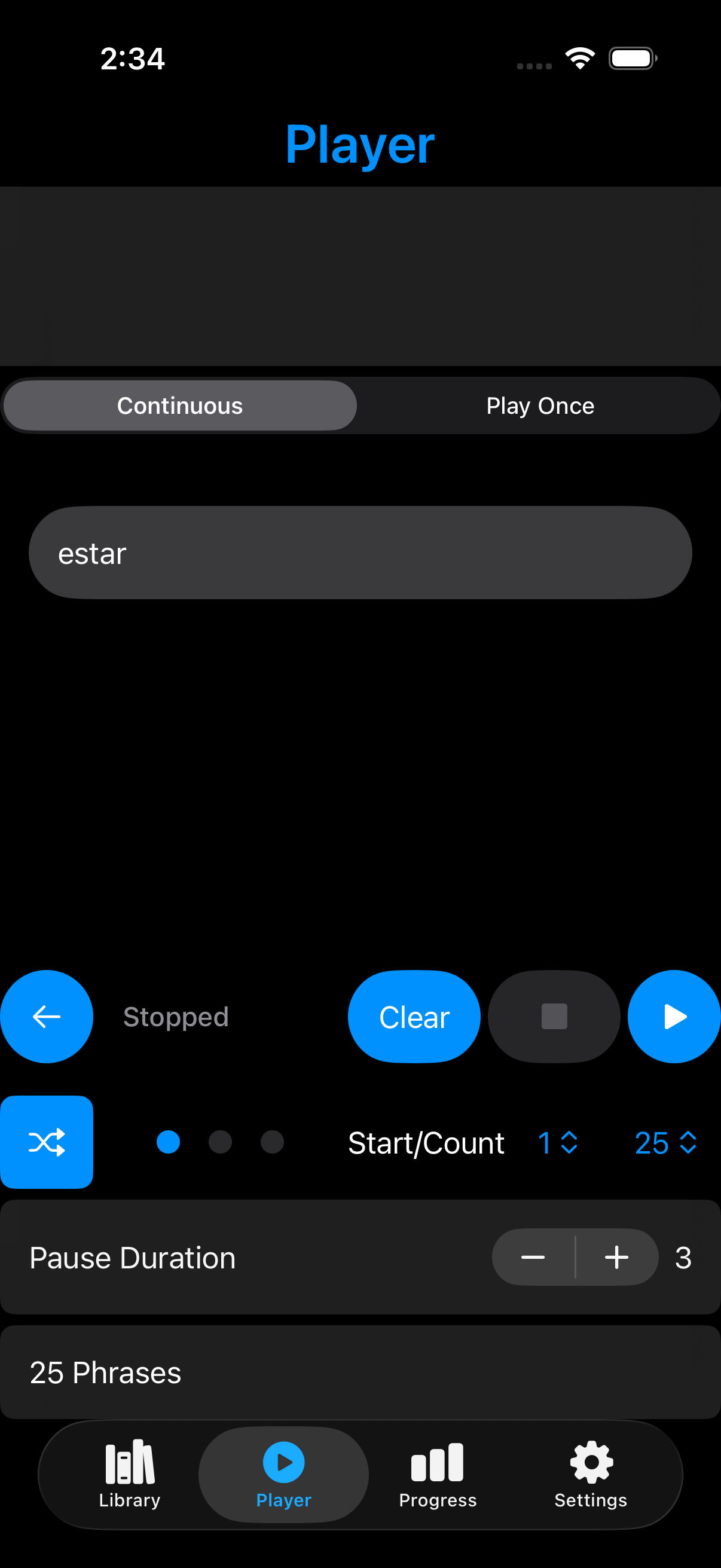
When we return to the Player Page, several buttons are now active. In the middle of the page, a list shows the exercise we added.
Choosing a Play Mode
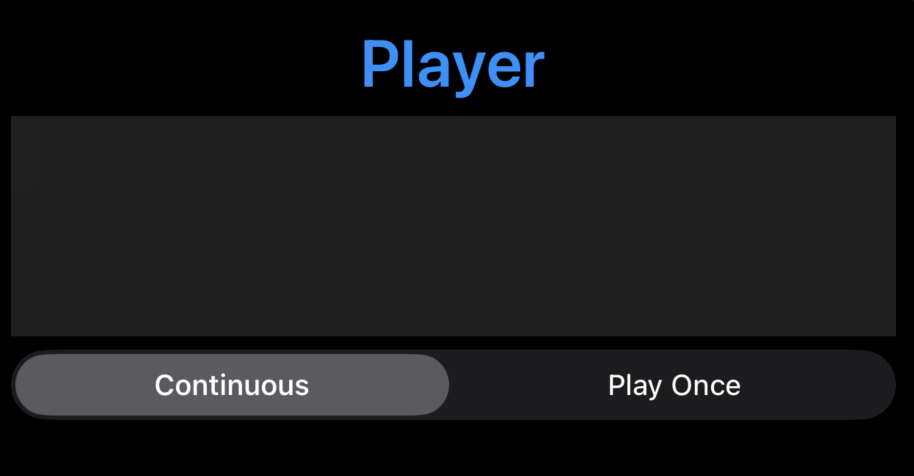
At the top of the page, you can toggle between two play modes:
- Play Once plays through the playlist once and stops.
- Continuous plays the playlist repeatedly until you stop it.
Using the Player Controls
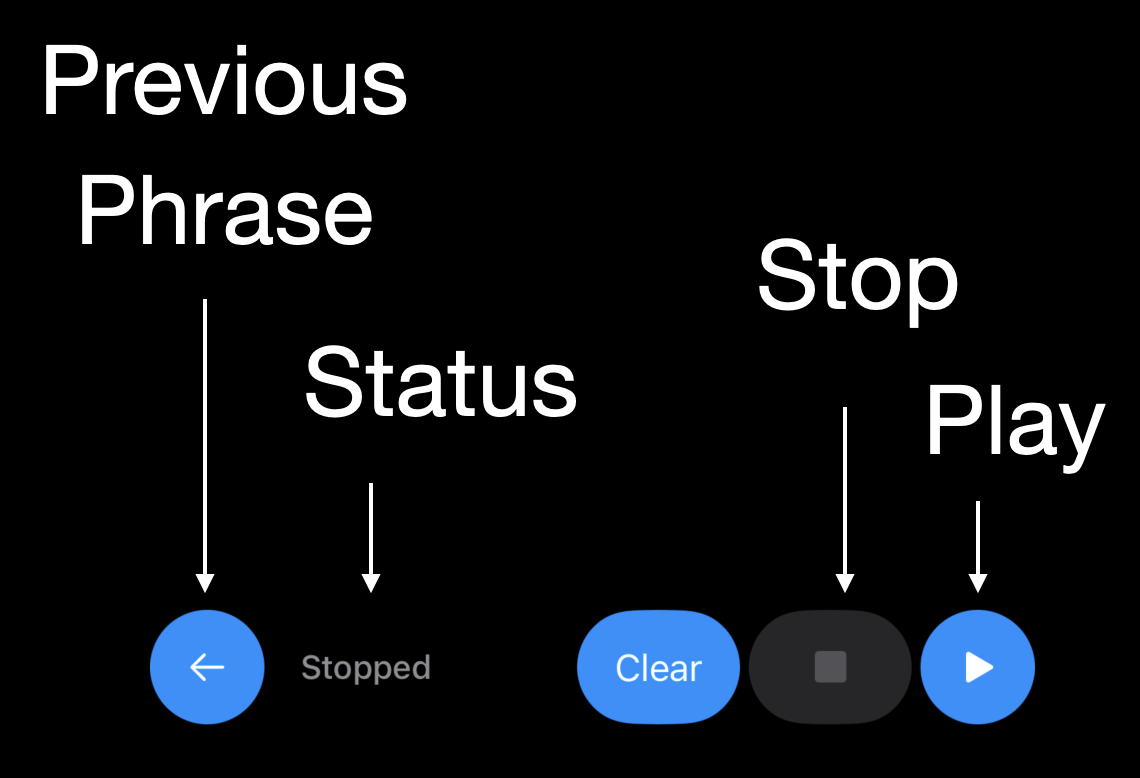
The control buttons let you play or stop the Player. When you select Stop, the playlist resets to the first phrase.
The Clear button works the same way as the Clear button on the Library Page: it clears the playlist and takes the app out of Player Mode.
The status message can show Stopped, Playing, or Paused.
While the playlist is playing, the Previous Phrase button immediately jumps back to the previous phrase. When the Player is paused, the button displays the previous phrase without restarting playback.
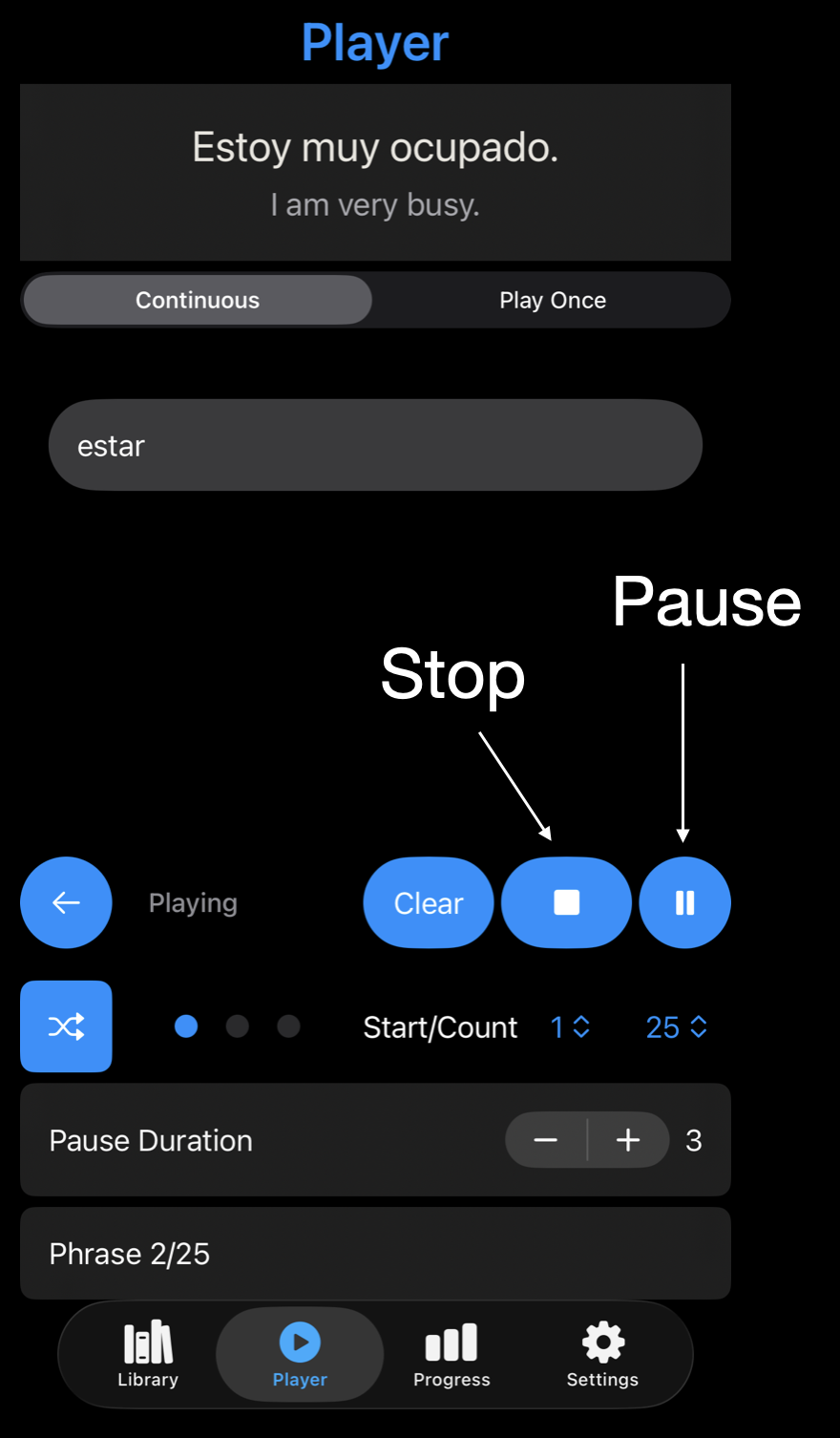
While phrases are playing, the Play button changes into a Pause button. The Stop button also becomes enabled.
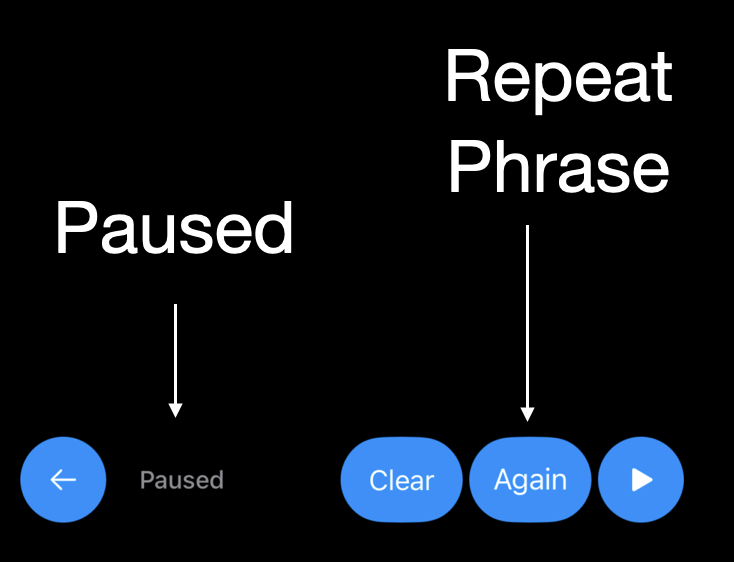
When the Player is paused, the status shows Paused. You can repeat the current phrase with the Again button.
Select Play to restart the playlist from its current position.
Changing the Phrase Order
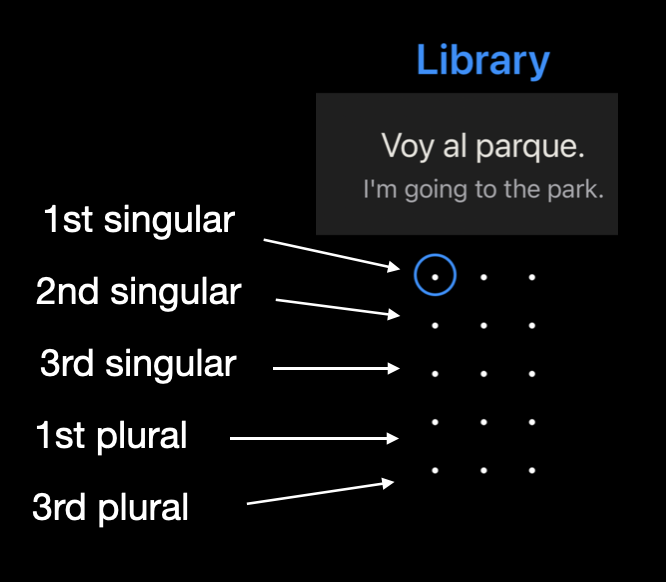
Many exercises, especially those involving verbs, arrange their phrases in rows according to verb conjugation.
When you use the Player, this order can provide a clue about which verb conjugation to expect.
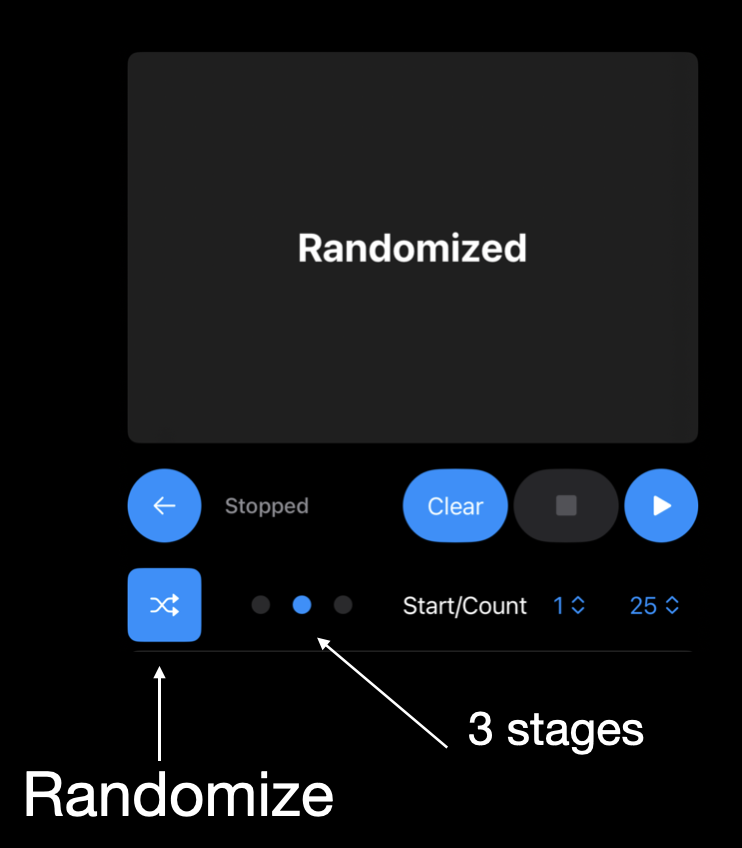
As you become more advanced, it can be helpful to mix up the phrase order. At the left side of the next row is the Randomize button. Select it to randomize the order of the phrases in the playlist.
You can select the Randomize button as many times as you want. Each time, it creates a different order.
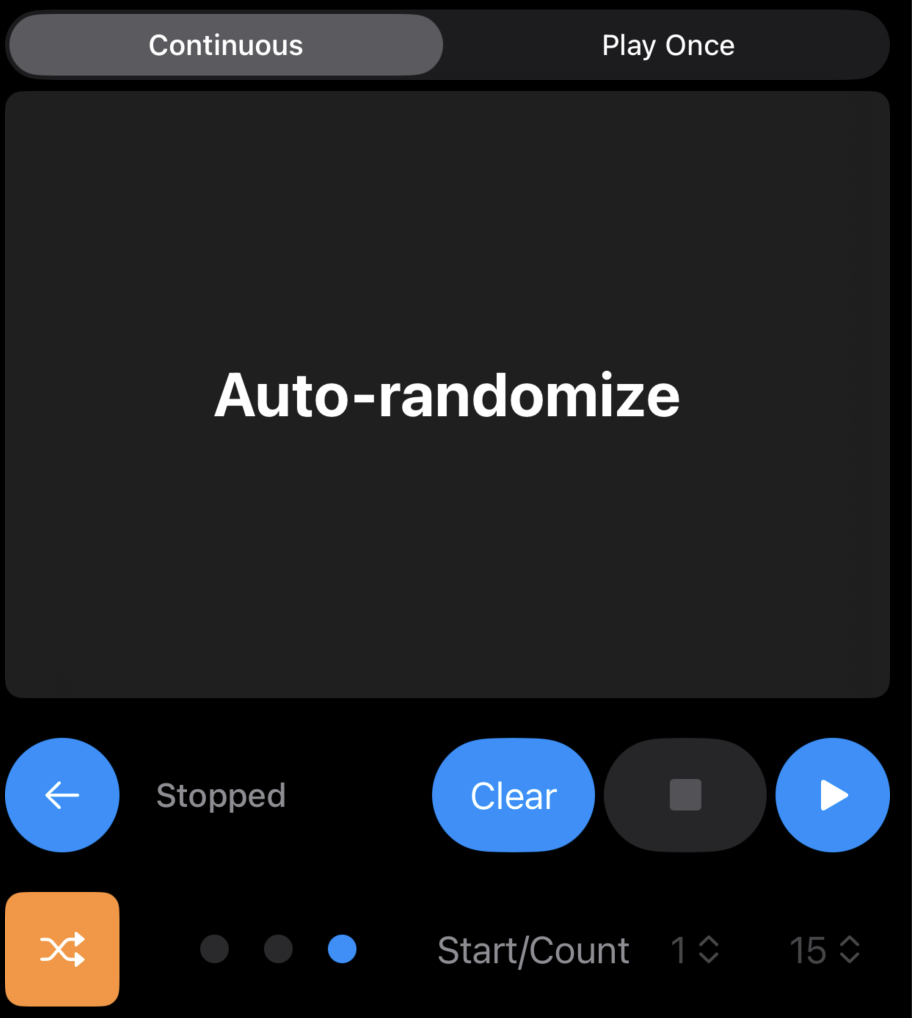
The Randomize button cycles through three stages:
- Ordered
- Randomized
- Auto-Randomize
Auto-Randomize mode rearranges the phrases each time you cycle through the playlist. You must be in Continuous mode to activate Auto-Randomize.
When the playlist is randomized, the individual exercises are no longer shown because their phrases have been combined into a single randomized playlist.
The Player will not record any completions until you reach the end of the entire randomized list. It then records completions for all the exercises at once.
Selecting a Range of Phrases
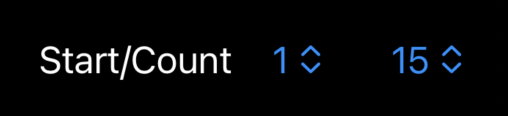
You can choose the first phrase and the number of phrases to include from a given set. For example, you might practice the first five phrases, then the next five, and so on.
These controls give you more flexibility when you are working on a particular exercise and want to break it into smaller groups.
Setting the Pause Duration
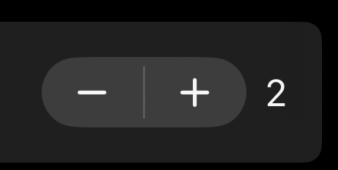
Below the row of control buttons is the Pause Duration selector. Its default value is 3X. This creates a pause after each phrase that is approximately equal to the duration of the phrase itself.

You can extend the pause duration up to 10X. At this setting, you have plenty of time to say the phrase and think about it before the next phrase plays.
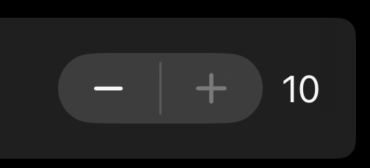
If you lower the value to 2X, the phrases play one after another with little space between them. A setting of 1X shortens the pause even further, but may sometimes cause phrases to overlap.
Reading the Phrase Counter
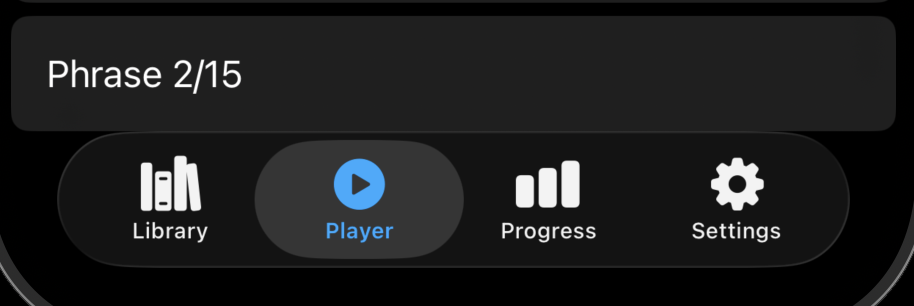
At the bottom of the page is the phrase counter. It shows the total number of phrases in the playlist and identifies the phrase that is currently playing.
From setting the pause duration and deciding whether to randomize the playlist to choosing how many phrases to practice, the Player gives you many ways to shape a practice session. Experiment with different setups based on how well you know the material and how many exercises you want to tackle at once.