
Using the Library Page
Finding and Selecting an Exercise
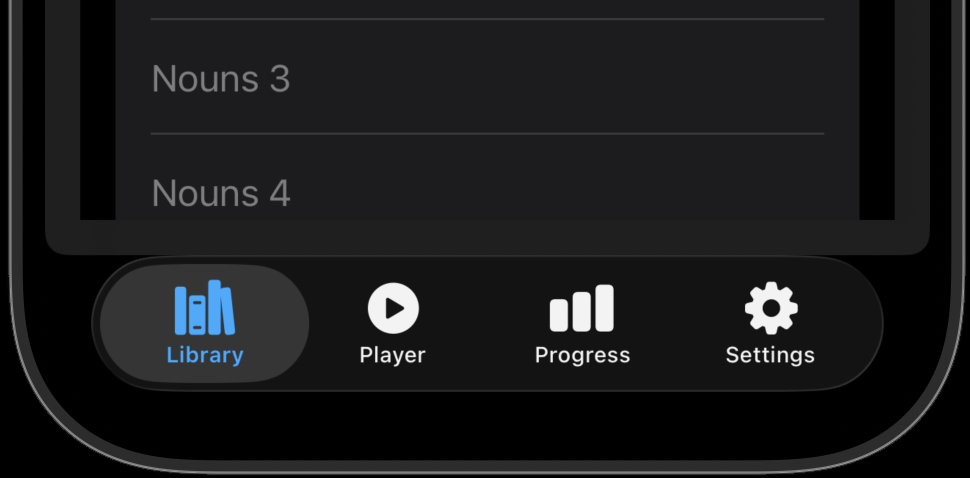
You get to the Library Page by clicking the bottom-left page icon.
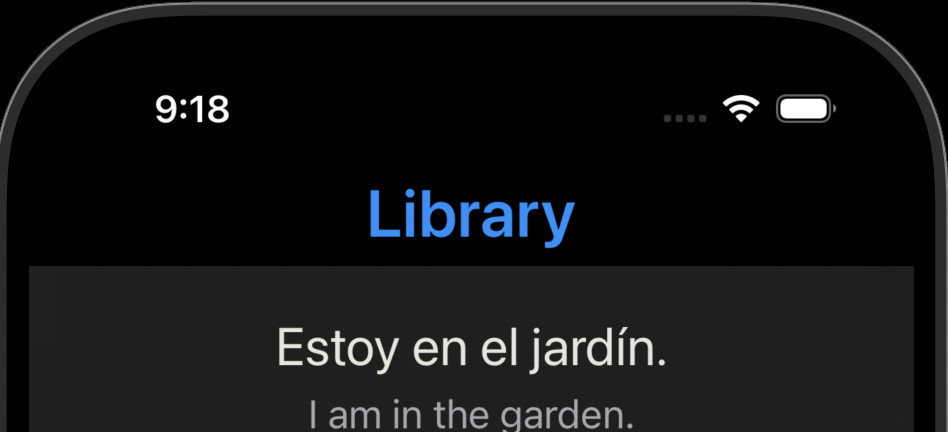
The page title is shown at the top.
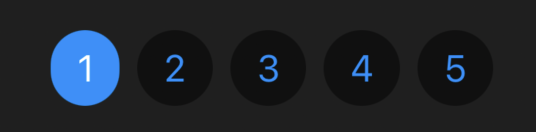
Use the Level buttons to choose a level. Keep in mind that each level contains a lot of information and may require three or more months of practice to really master.
We can see that for Level One, the currently selected exercise set is “Nouns.”
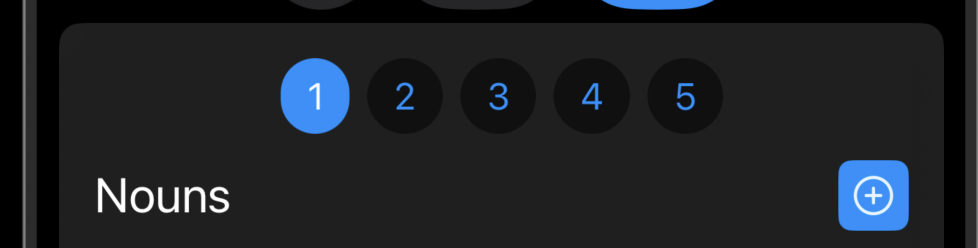
Exercises are organized into groups, or exercise sets, and there are about 8 to 10 exercise sets in each level. If we click on the current exercise set, it displays all exercise sets for the current level.
The first two exercise sets, “Nouns” and “Building Blocks,” contain words or phrases that are incomplete sentences. Most other exercises contain complete sentences.
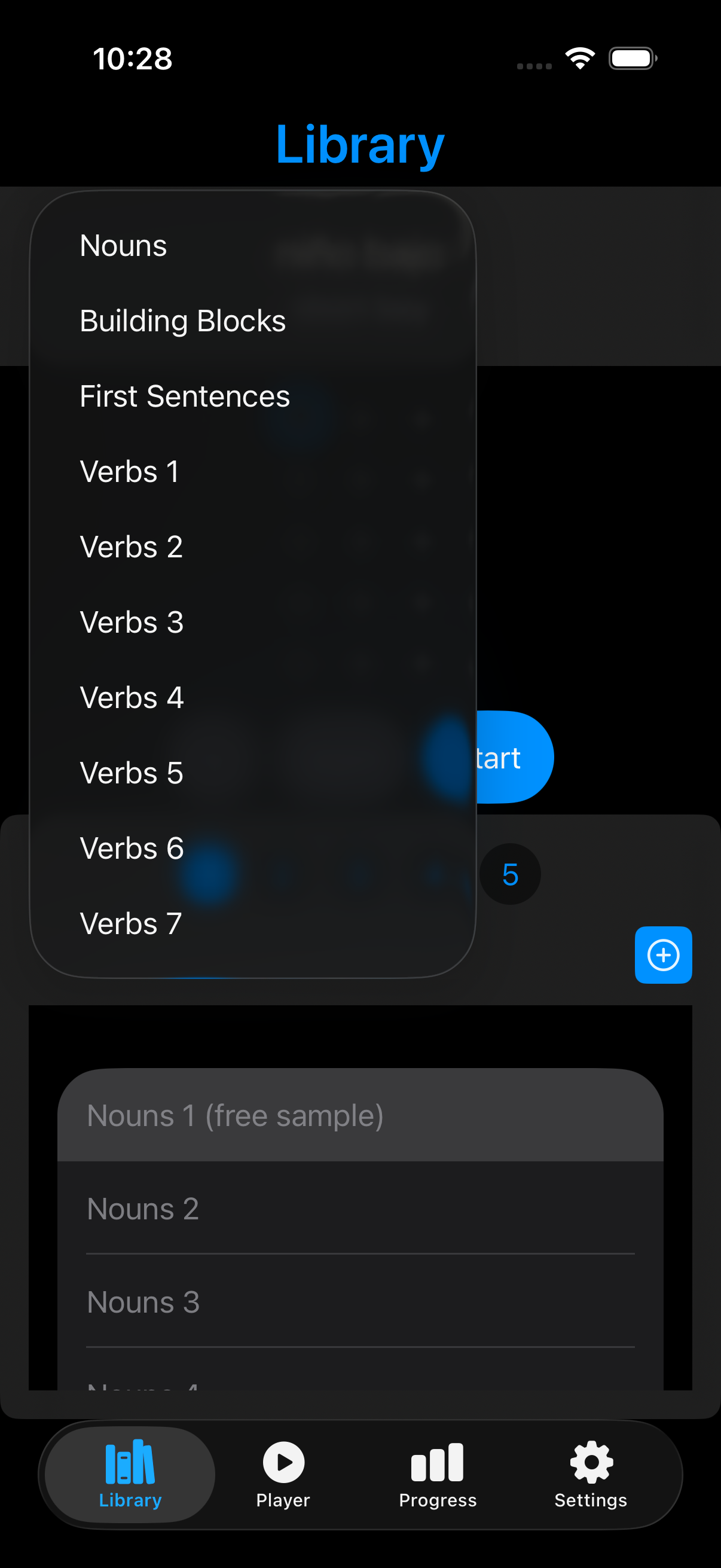
When we select an exercise set, we see a list of exercises below.
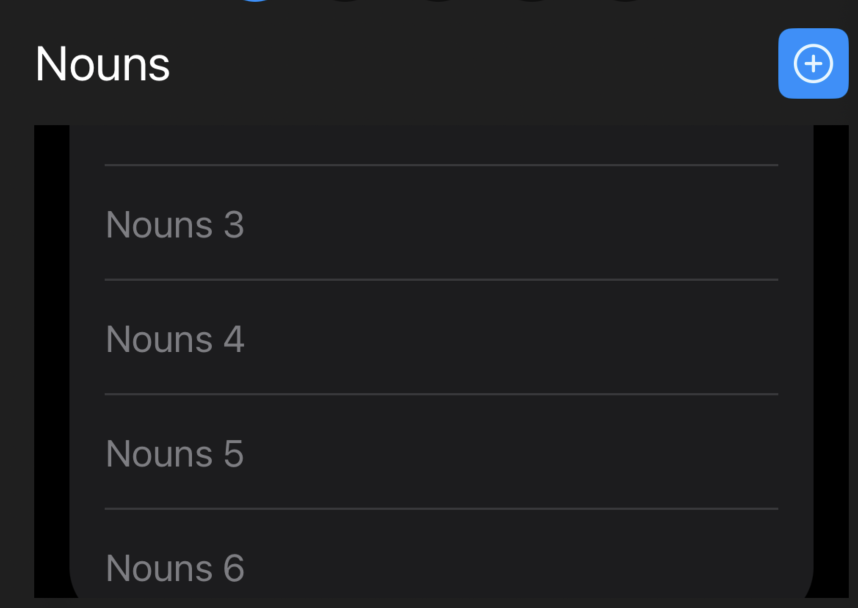
Practicing Individual Phrases
Let’s select the first exercise.
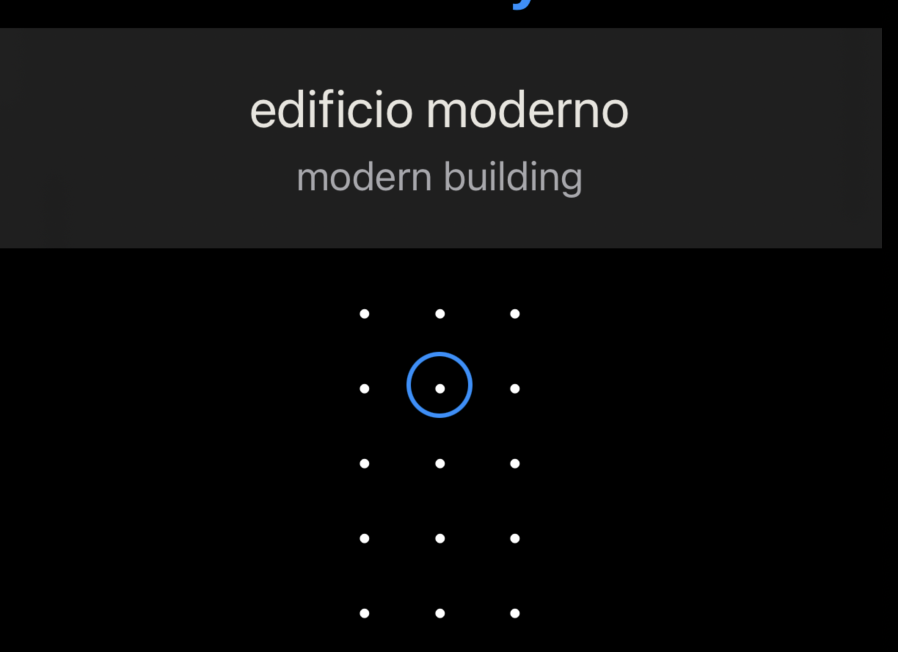
The phrase grid has five rows and three columns. Therefore, there are 15 phrases in this exercise, and the first phrase is selected.
Above it, we see the Spanish and English text for that phrase.
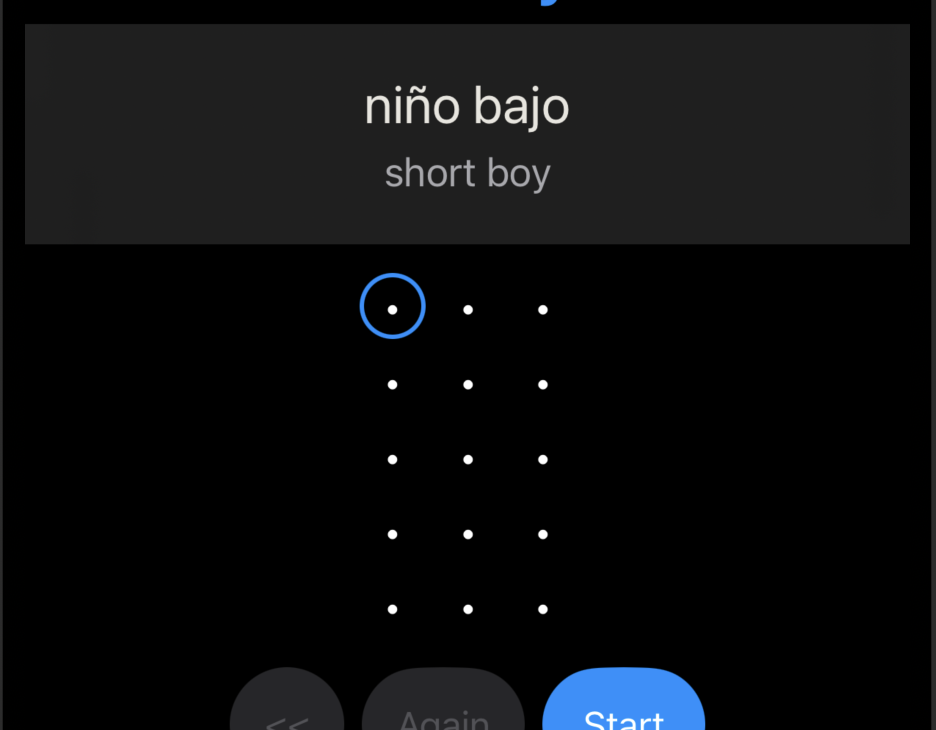
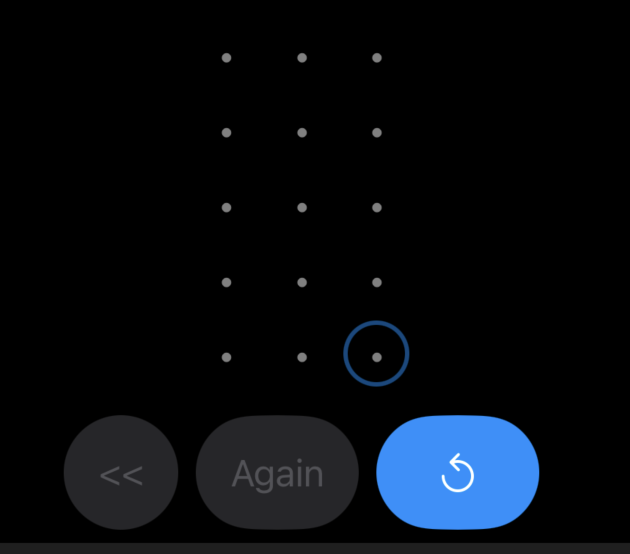
Below the phrase grid are the control buttons.
You will normally begin an exercise by hitting the Start button.

This plays the first phrase and enables all three buttons.
The play button on the right automatically selects the next phrase and plays it.
The Again button repeats the currently selected phrase.
The chevron button works in two steps. The first time you hit it, it goes to the beginning of the same row. The second time, it goes to the first phrase.
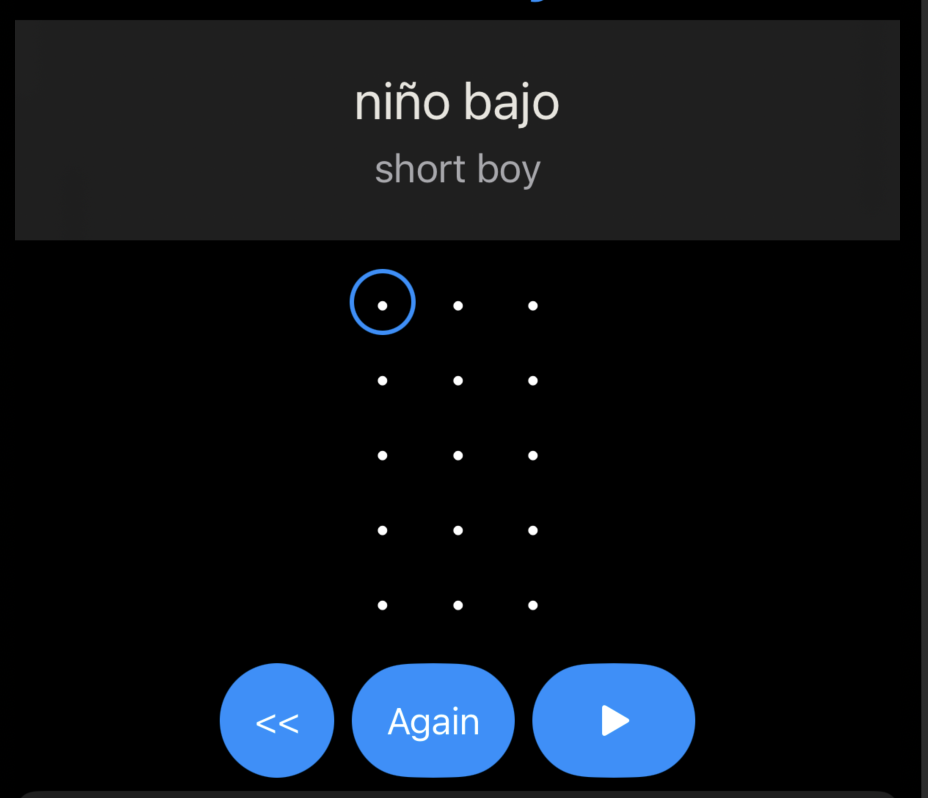
You can also jump to any phrase by clicking on its phrase icon.
After you complete the exercise, the last phrase remains selected and the phrase grid blinks three times to confirm completion. Each completed exercise is added to your usage data and appears on the Progress Page. Tap the Restart button to return to the first phrase and begin the exercise again.
Adding Exercises to the Player
To add exercises to the Player Page, we must start in the Library Page.
Slide an exercise left to reveal the Add-To-Playlist button.
When we press this button, an icon appears showing that the exercise is on the playlist.
This temporarily disables the Library Page and puts the application into Player Mode.
You can keep adding more exercises to the playlist by sliding left on an exercise.
If you hit the Clear button, it clears the playlist and puts the Library Page back into its normal mode.
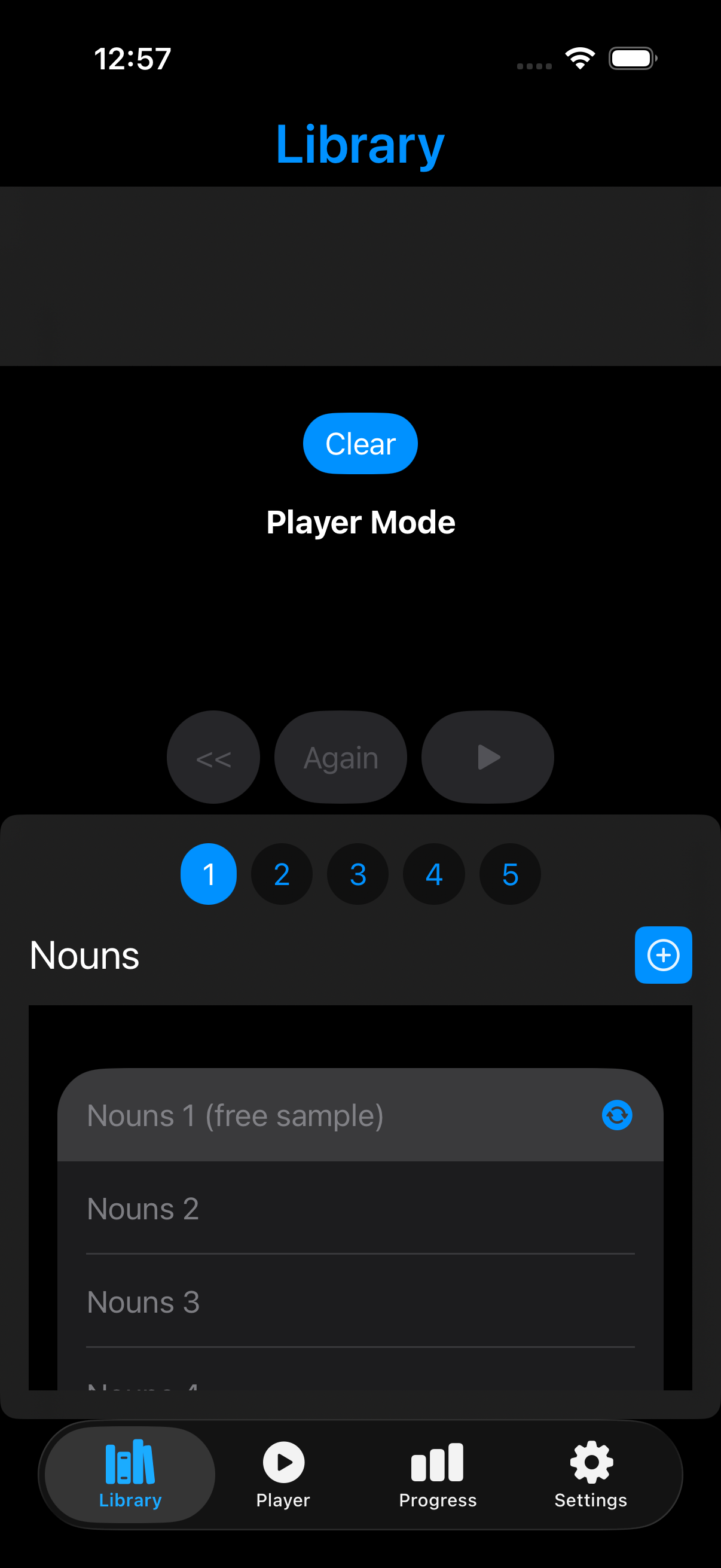
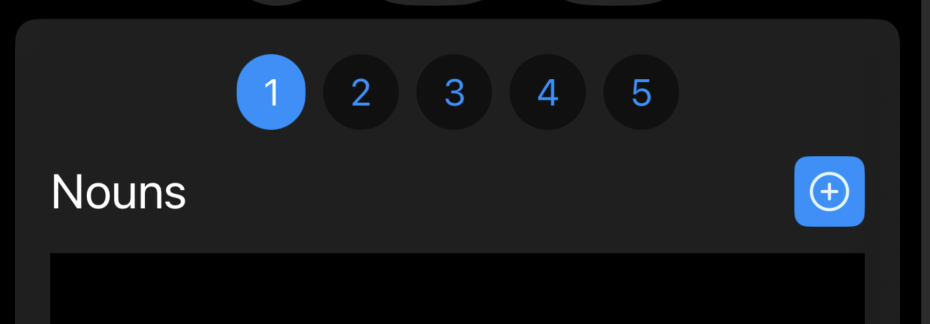
You can also add an entire set of exercises to the Player playlist by hitting the icon next to the Exercise Set name.
The Library Page is the first page you go to for selecting a new exercise. You can then either continue practicing manually on the Library Page or add exercises to the playlist for use on the Player Page.